

If you’re an ecommerce retailer looking to maximize your sales and provide a seamless shopping experience for your customers, learning how to add Shopify related products is a powerful strategy. By showcasing complementary or similar items alongside your main product, you can entice customers to explore more options and make additional purchases.
In this blog post, we will walk you through the process of adding related products to Shopify, equipping you with the knowledge and tools to optimize your store and drive conversions.
Whether you’re new to Shopify or an experienced merchant looking to refine your product presentation, this comprehensive guide will provide you with step-by-step instructions.
From selecting the right app or theme to configuring settings and maximizing the impact of related products, we’ve got you covered.
So, let’s delve into the world of related products and discover how you can elevate your Shopify store‘s success.
Where Should You Recommend Products on Your Site?
There’s some flexibility with where you place Shopify related products, but the go-to places include:
- Product pages
- The Cart area
- The Checkout module
- Thank you pages
- Receipts or follow-up emails
Why is it Essential to Add Shopify Related Products to Your Store?
When it comes to running a successful online store, providing a seamless shopping experience and maximizing sales are crucial.
One effective way to achieve these goals is by incorporating related products into your Shopify store. Here, we’ll explore the importance of adding Shopify related products and the benefits they can bring to your business.
- Increase Average Order Value: By showcasing related products alongside the main item, you encourage customers to explore additional options and make more purchases. This can significantly increase the average order value, boosting your revenue without acquiring new customers.
- Enhance Cross-Selling Opportunities: Related products create valuable cross-selling opportunities by suggesting complementary or similar items that align with the customer’s interests. This not only improves the shopping experience but also exposes customers to a wider range of products, increasing the chances of making multiple sales.
- Improve Customer Satisfaction: When customers find relevant and appealing related products, they feel that their needs and preferences are understood. This personalized approach enhances customer satisfaction and builds trust, leading to repeat purchases and positive word-of-mouth recommendations.
- Optimize Product Visibility: Adding related products strategically allows you to highlight specific items that may otherwise go unnoticed. By featuring them alongside popular or high-demand products, you increase their visibility and exposure, potentially leading to more sales.
- Drive Impulse Purchases: Related products can tap into the power of impulse buying. When customers see enticing and relevant items that complement their original purchase, they are more likely to make spontaneous decisions and add those products to their cart.
- Showcase Product Range: Adding related products enables you to showcase the breadth and depth of your product range. It allows customers to discover the variety of options available, encouraging them to explore different categories and find products that meet their specific needs.
Incorporating related products into your Shopify store is essential for driving sales, enhancing the shopping experience, and increasing customer satisfaction. By leveraging the power of related products, you can boost average order value, optimize product visibility, and tap into cross-selling opportunities. Start adding related products to your Shopify store today and unlock the full potential of your business.
Next up, learn three ways to add related products to Shopify!
A Step-by-step Guide on How to Add Shopify Related Products
There are three methods to add Shopify related products to your store:
- With a built-in block on the Shopify theme editor
- Using an app
- Manually, with code and a Liquid file
But before anything, be sure to add several products to your Shopify store. Otherwise, the related products features won’t work.
Method 1: Add Related Products with Built-in Shopify Blocks
Perhaps the easiest way to include related products on a Shopify store involves using the built-in tools available from Shopify. Most Shopify themes provide related product sections ready for you to edit, or to add as a block somewhere on your website design.
Yet, where and how related products appear on your site depends on the theme you choose.
In general, you can expect to find a Related Products section on the Default Product page in the Shopify Theme Editor.
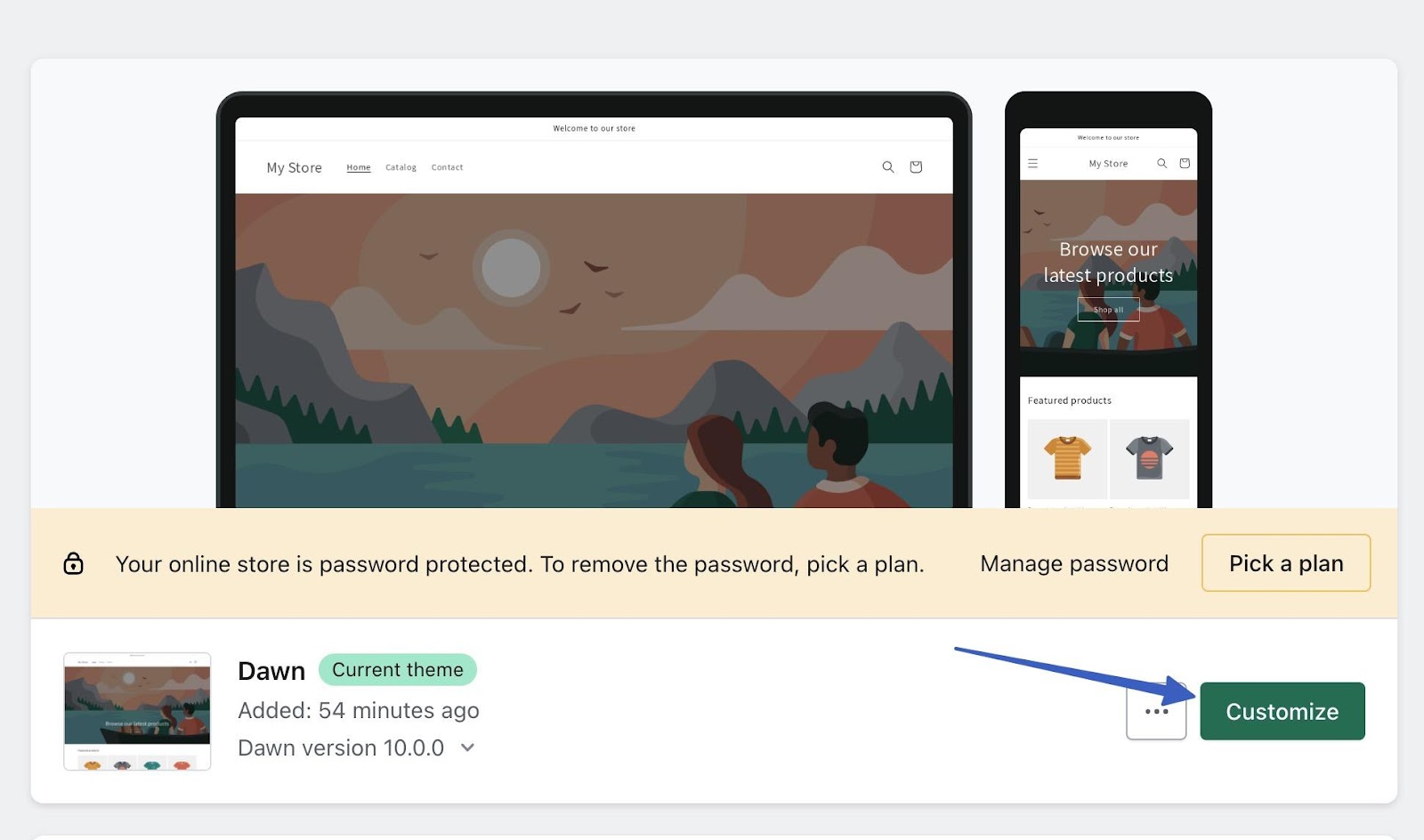
In Shopify, go to Sales Channels > Online Store. Click on the Customize button.
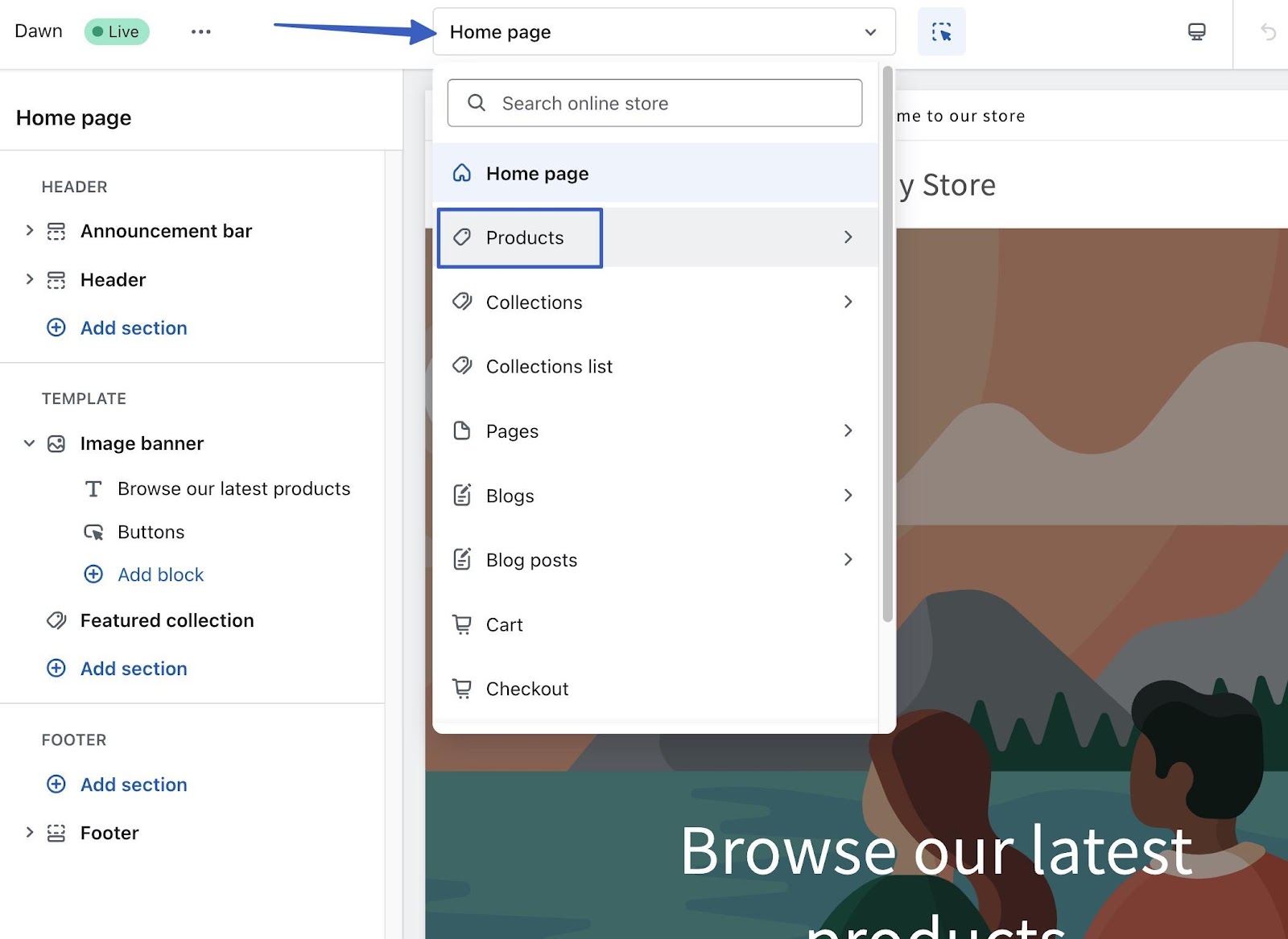
This reveals the Shopify Theme Editor. At the top of the page, use the dropdown menu to switch from the Home Page to Products.
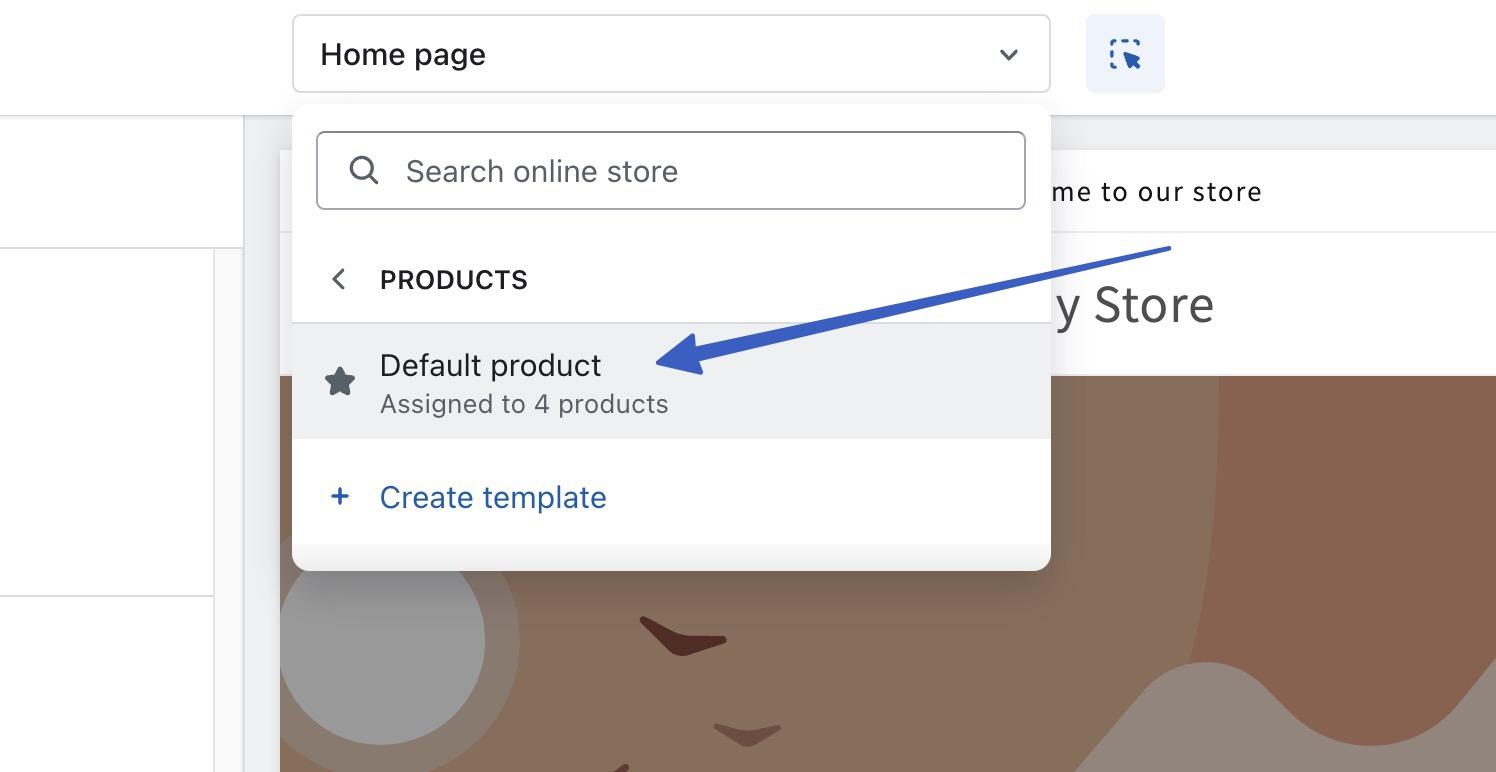
Pick Default Product.
This displays the default product page design, and includes demo product page content from one of the items you already have in your store.
Note: You must have at least one product in your store to see this page, and multiple products in your store for the related products functionality to work.
In this particular theme, you’ll find a Related Products block on the Default Product page. This automatically starts populating a section of each product page with relevant items customers might also want to buy.
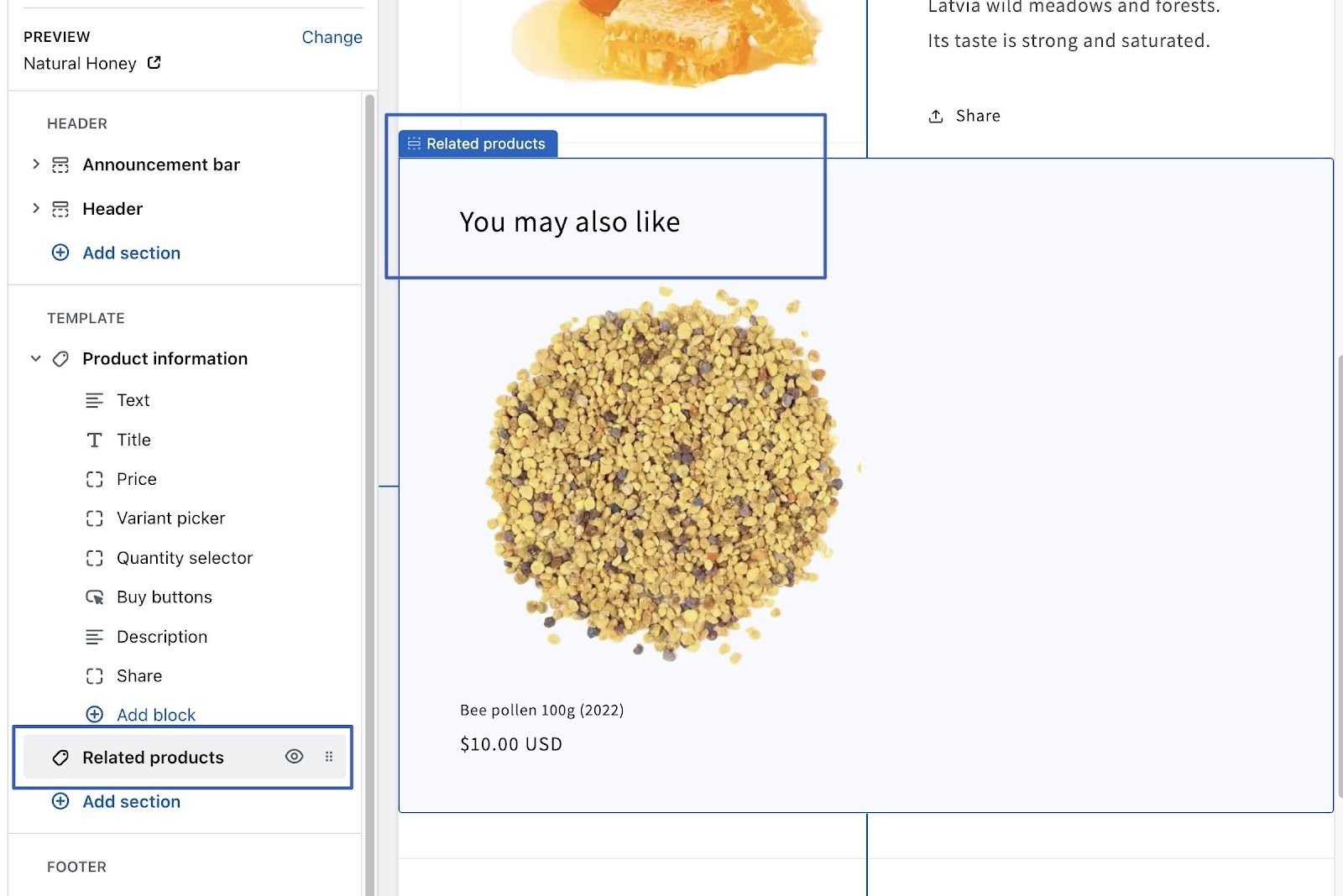
Please don’t hesitate to click and drag the block on the left side to move its location.
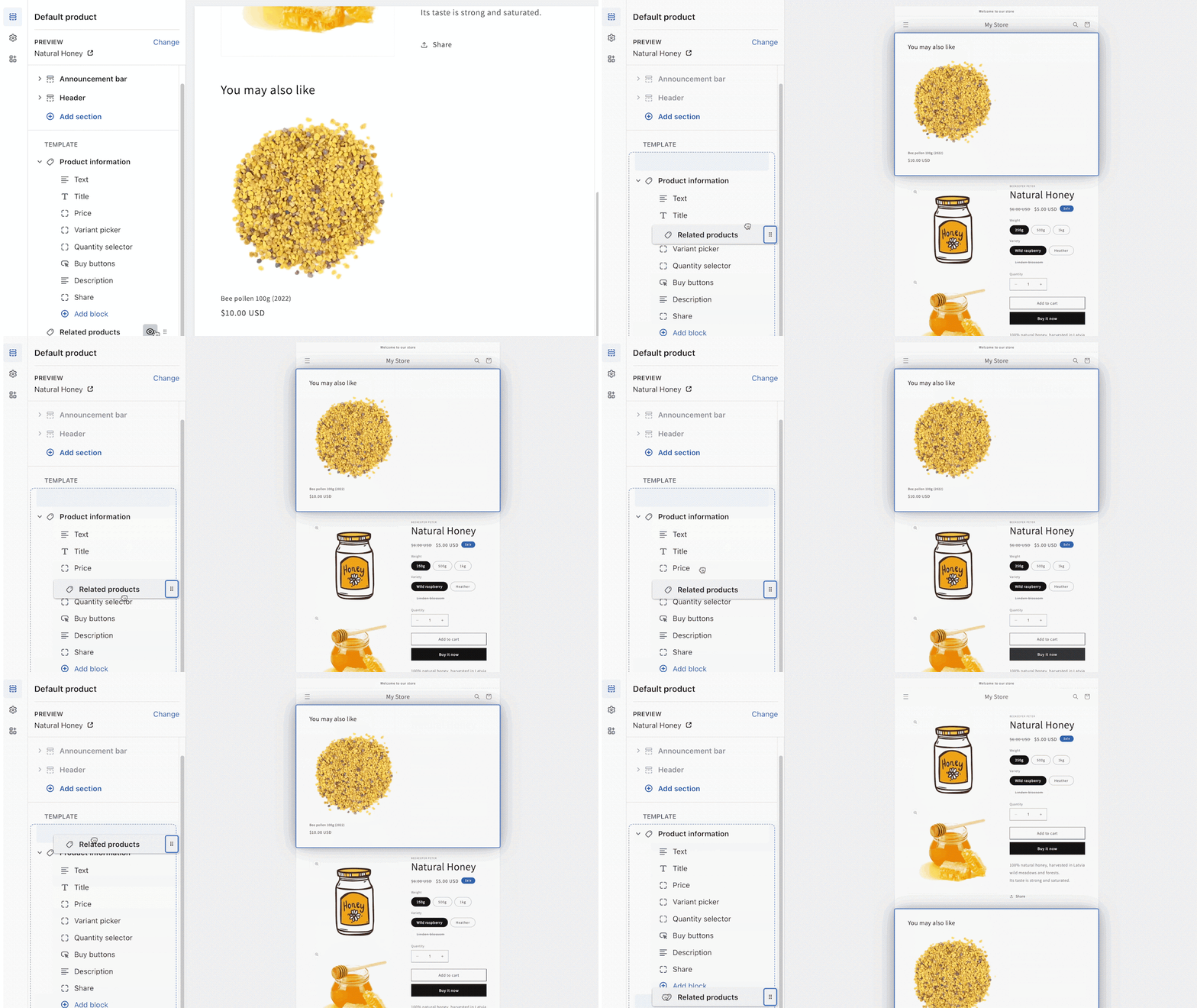
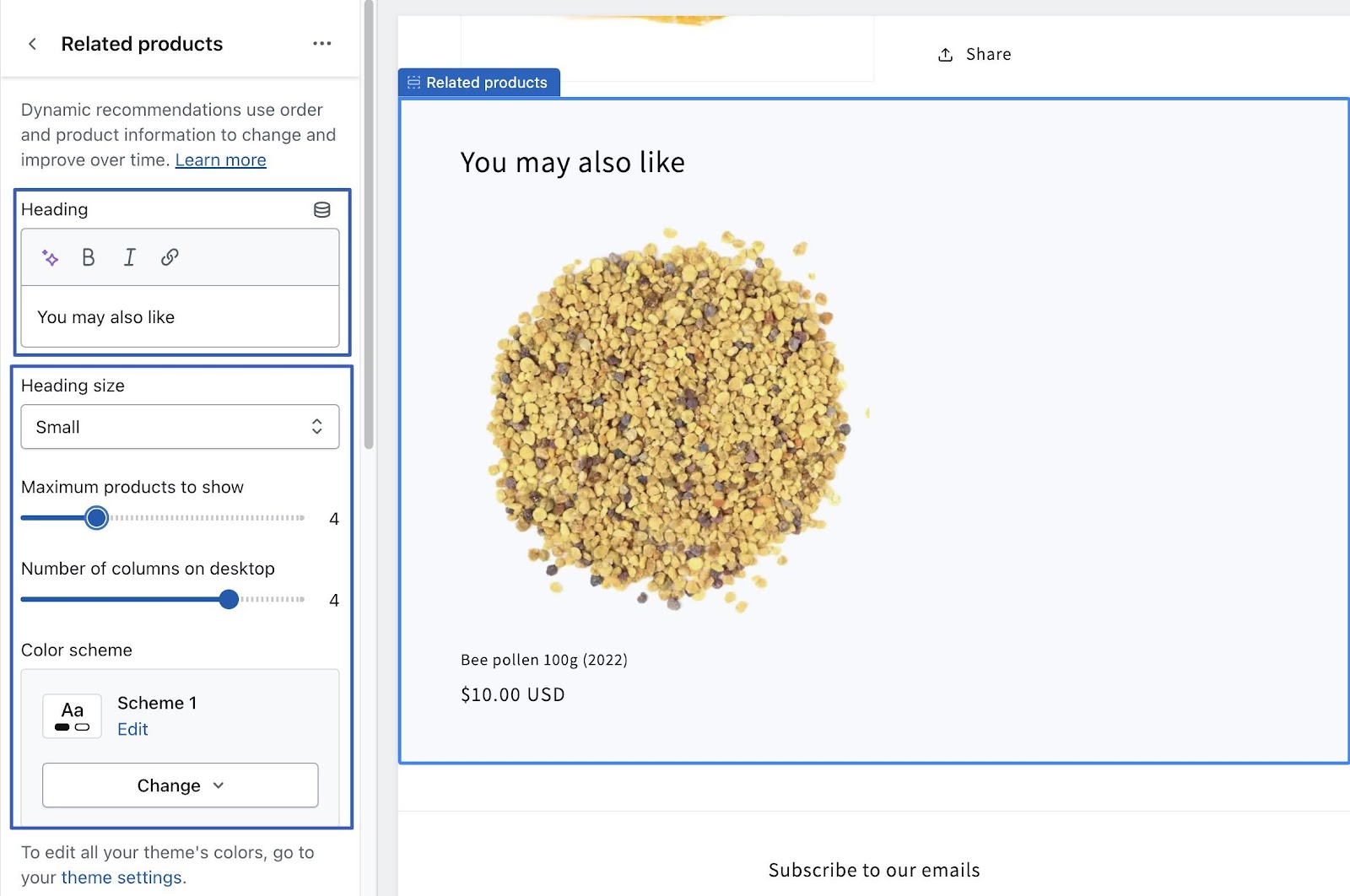
Either select the actual Related Products block in the editor, or click the Related Products item on the left side panel. This opens up the settings available for the Related Products module.
By default, Shopify uses dynamic product recommendations; these improve over time and change based on order and product information. So, you may not initially see what you want in the page editor.
Edit these fields based on your preferences:
- Heading
- Heading Size
- Maximum products to show
- Number of columns on desktop
- Color scheme
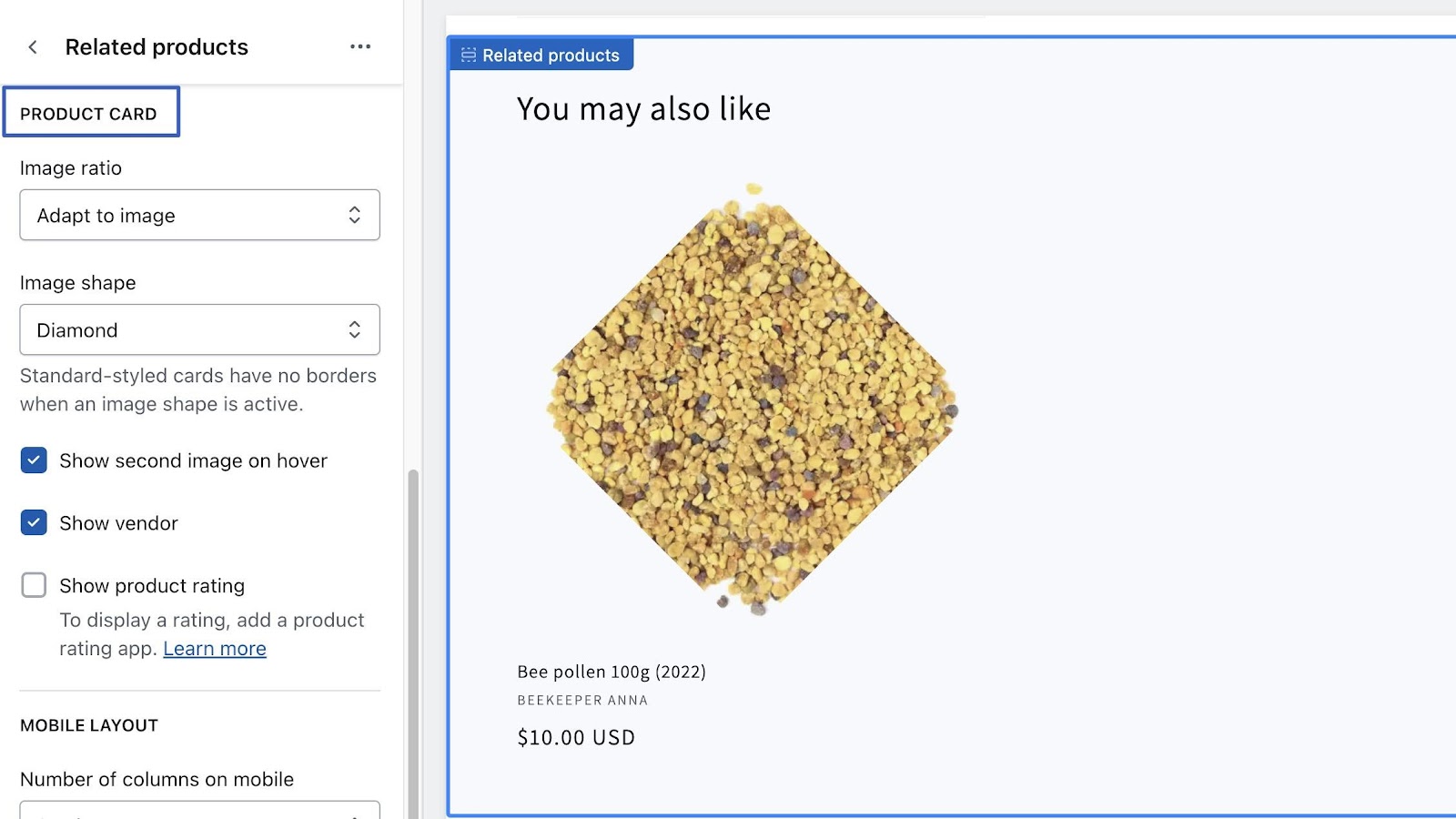
The Product Card section allows for unique styling of the image.
Here are the Product Card Settings:
- Image Ratio: Options to adapt to image, portrait, or square.
- Image shape: Diamond, arch, chevron, blob, and many more.
- Show second image on hover: Yes or no.
- Show vendor: Yes or no.
- Show product rating: Yes or no.
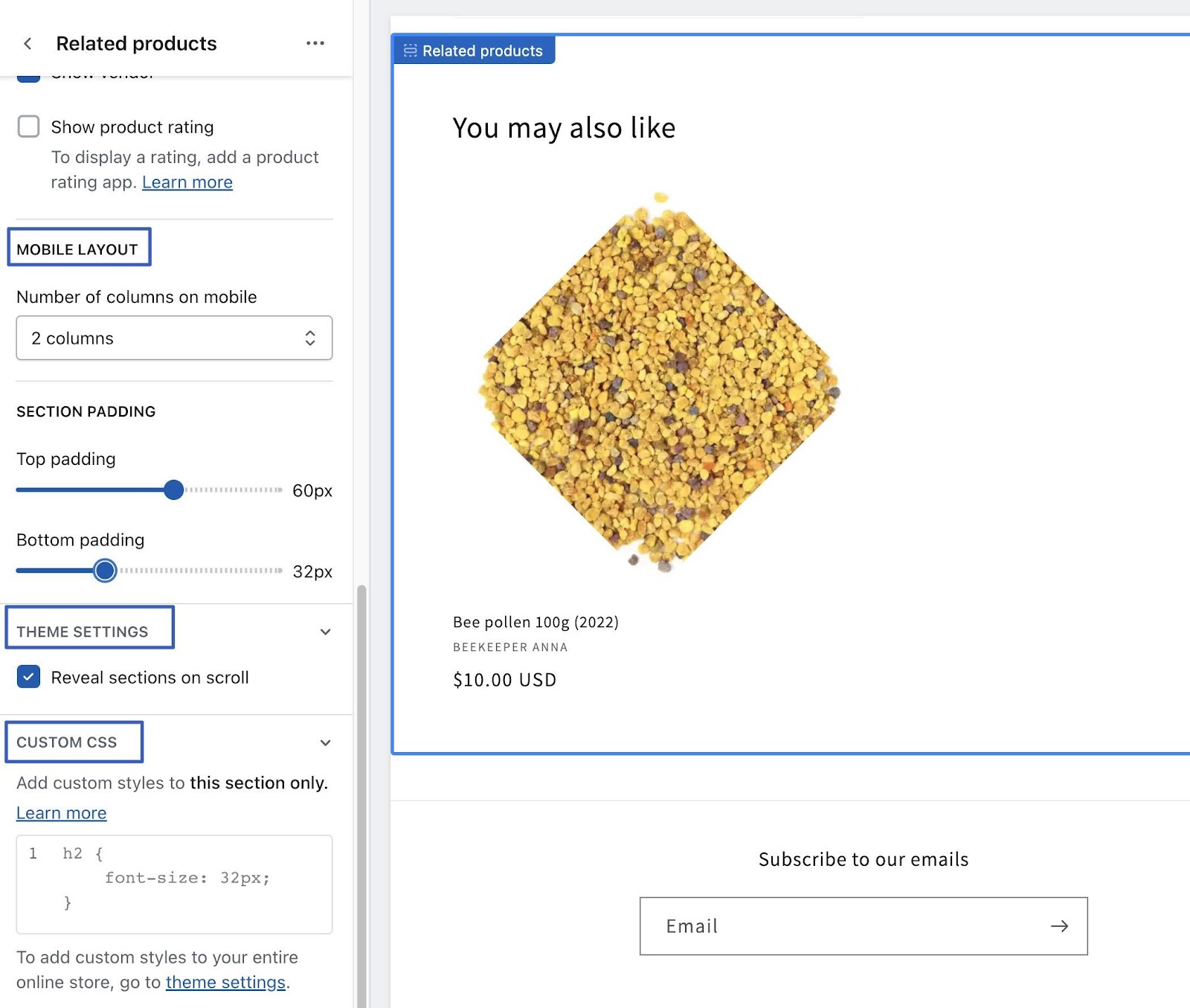
Then, adjust the final settings as needed:
- Mobile layout: Adjust the number of columns shown on mobile devices.
- Section padding: Change top and bottom padding around the related products.
- Theme Settings: Choose to reveal sections on scroll or not.
- Custom CSS: Add your own CSS to stylize the Related Products section even further.
When you’re done, click on the Save button. If your shop is published, it will continuously collect data to improve how the related products appear on your site.
You’ll also notice that some themes offer additional areas to insert Related Products modules.
If you find that your theme lacks Related Product blocks in certain areas, there is a workaround. Let’s say, for example, you’d like to add some related products to a blog post or shopping cart, but your theme doesn’t offer the block.

In that case, you can add the Featured Collection or Featured Product block, and add it to any section on your website. This lacks any dynamic product displays, but it allows you to at least recommend some manually-selected items in areas where it makes sense.
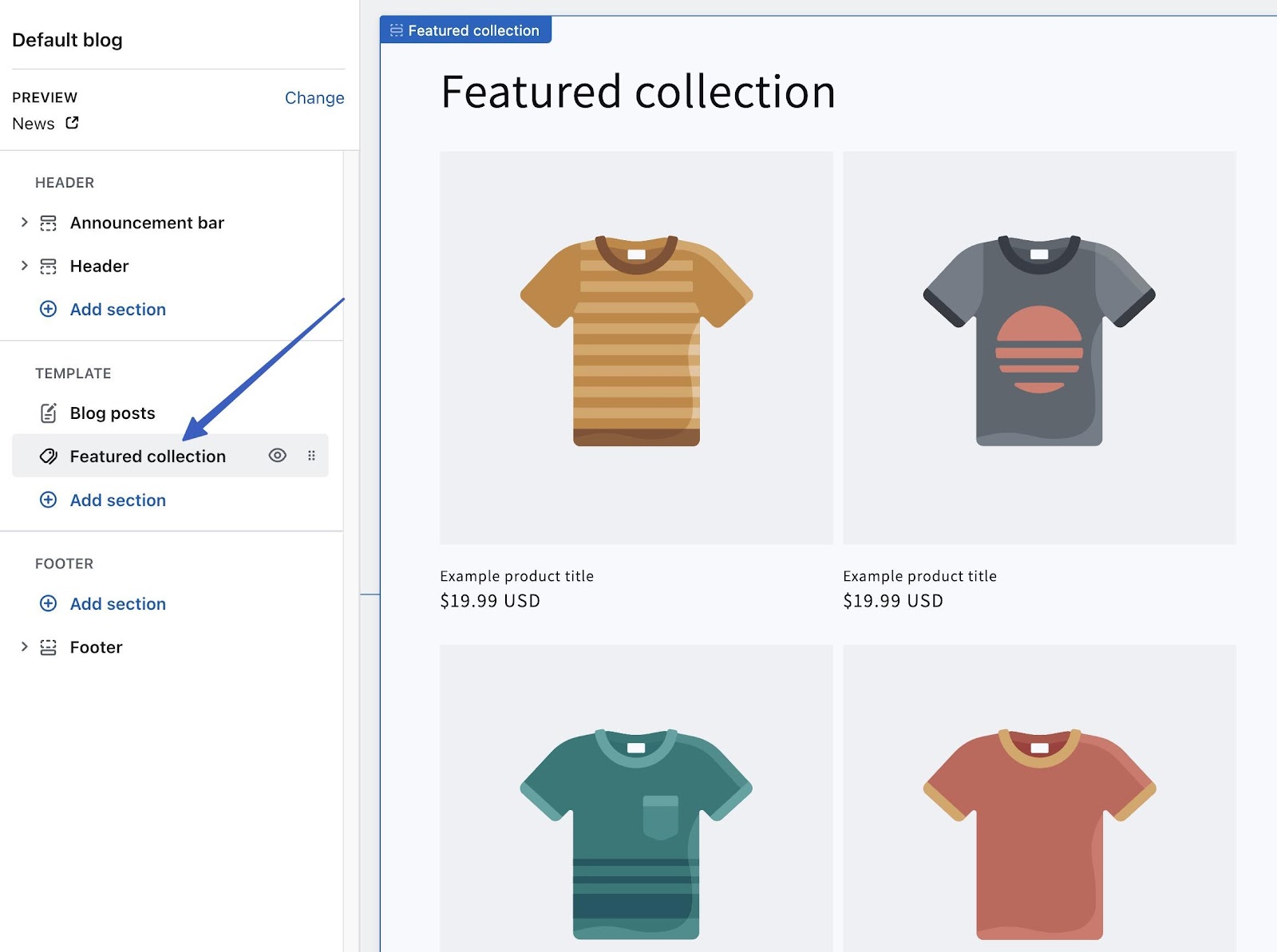
Method 2: Add Shopify Related Products with an App
The Shopify App Store offers several apps for incorporating related products into your shop.
You can search for these apps, and for other app categories, by going to the Add Apps section in the Shopify Admin.
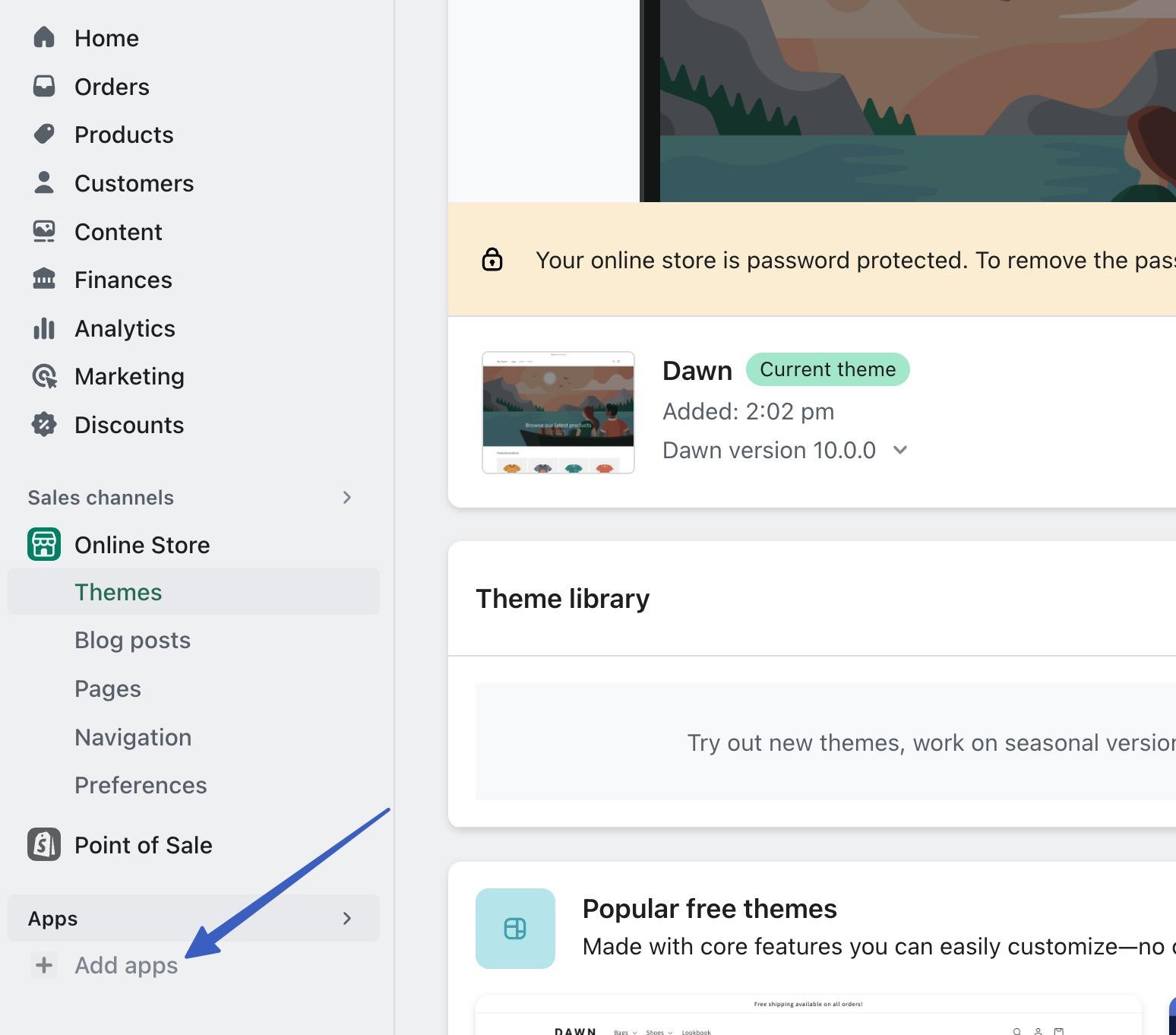
Related product apps offer advanced styling and dynamic presentation settings when compared to the default related products from Shopify. For instance, some apps let you upsell and cross-sell, while others have personalized recommendations and product sliders.
Although many exist, here are our favorite related products apps:
- Wiser Product Recommendations
- K:Related Products
- ReConvert Upsell and Cross Sell
- Frequently Bought Together
- Selleasy – Upsell and Cross Sell
- Also Bought
- GLO Related Products
Each app varies in pricing and functionality, so we recommend testing them all to find your favorite. For this quick example, we’ll use the K:Related Products App. That app is free; many others have free plans as well.
Install the app in the Shopify App Store.
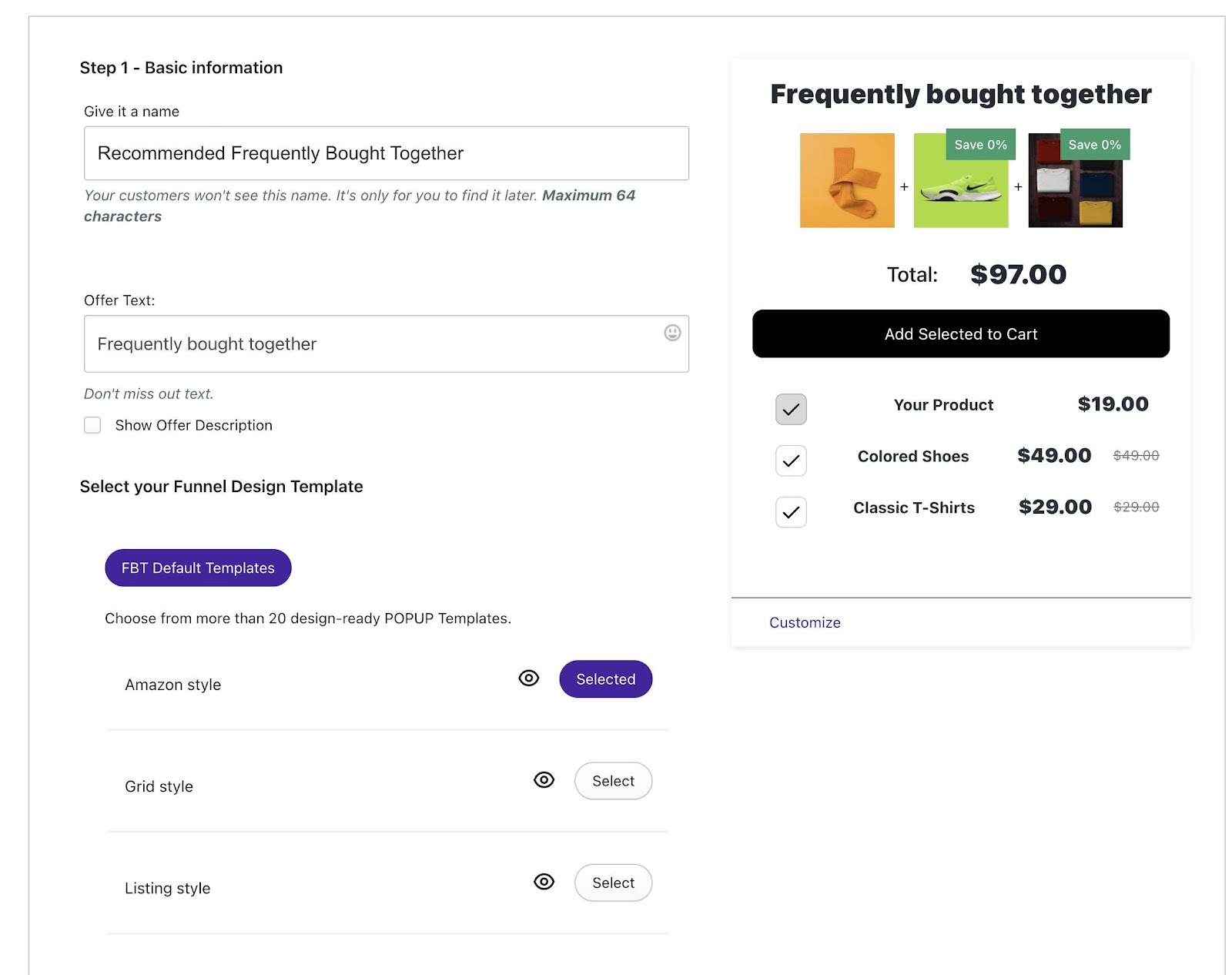
To give you an idea of how apps expand the related products functionality, you’ll see that this app has:
- Offer text
- Related product templates (like an Amazon style)
- Options for customers to add multiple recommended products to their cart page in one click
- Countdown timers
- Much more
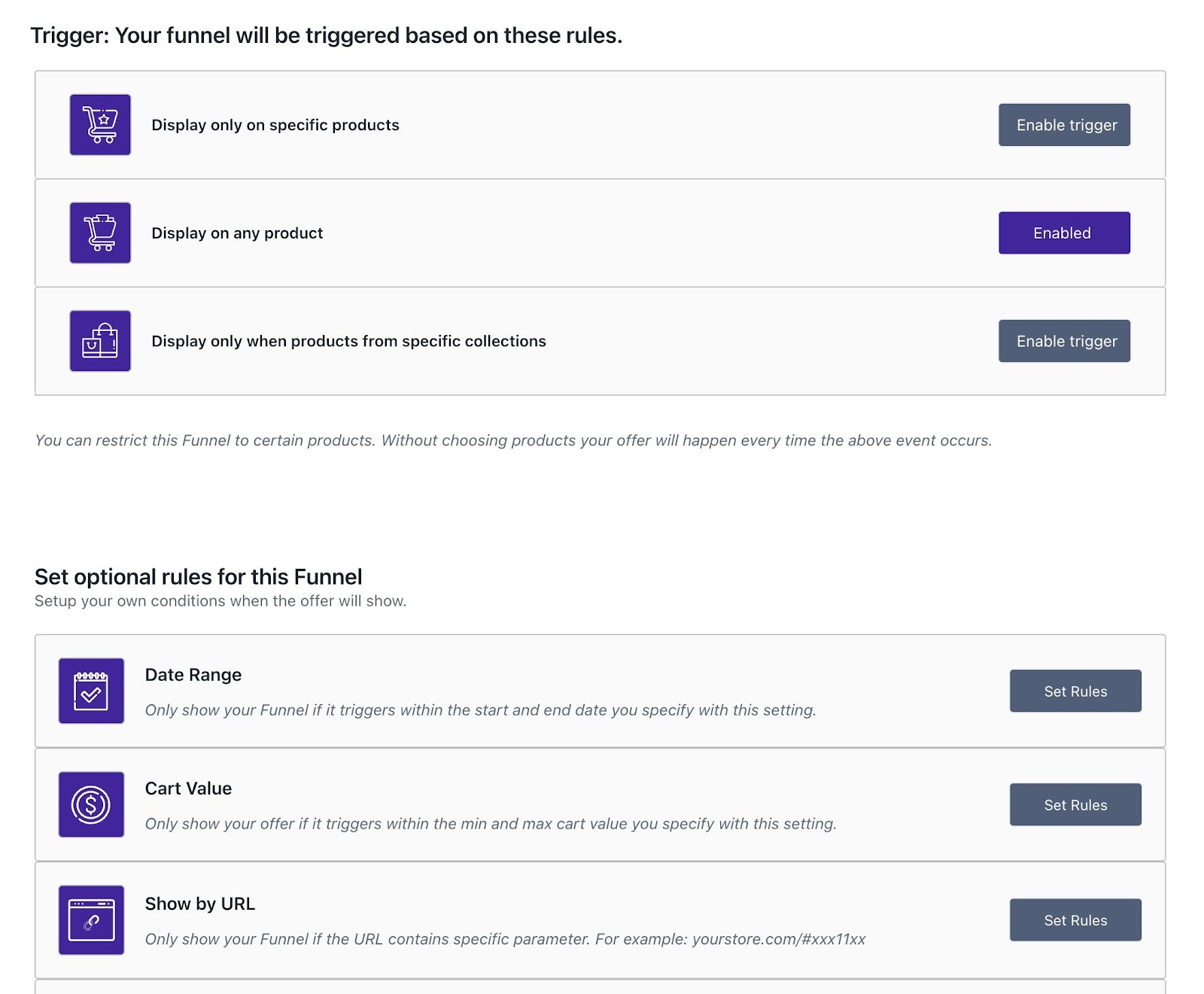
You even gain advanced control over the display of the related products, like only displaying on specific Shopify products, or showing the related items based on a date range or cart value.
When it’s all done, you can save the related products module and choose where to display it on your website.
Method 3: Manually Add Shopify related products (with code in a Liquid file)
The final way to insert related products into Shopify is by writing your own code, which you’d then insert into a particular section of your Shopify Liquid files.
Here’s an example of code for a Related Products section in Shopify that can be used in a Liquid file:
{% assign current_product = product %}
{% assign related_products = current_product.tags | split: ', ' %}
{% assign related_products_count = 0 %}

{% for product in collections.all.products %}
  {% if product.tags contains related_products %}
    {% if related_products_count < 4 and product != current_product %}
      <div class="related-product">
        <a href="{{ product.url }}">
          <img src="{{ product.featured_image | img_url: product.title }}</h3>
          <p>{{ product.price | 'medium' }}" alt="{{ product.title }}">
          <h3>{{ money }}</p>
        </a>
      </div>
      {% assign related_products_count = related_products_count | plus: 1 %}
    {% endif %}
  {% endif %}
{% endfor %}
This code assumes that you want to display up to four related products based on the tags of the current product. Adjust the related_products_count < 4 condition as needed to display a unique number of related products.
To use this code, place it in the appropriate Liquid file where you want the Related Products section to appear. It will loop through all the products in the store, check if they have any matching tags, and display the related products accordingly.
You can customize the HTML markup and CSS styling within the <div class="related-product"> section to match your store’s design and layout.
Remember to test and adjust the code based on your specific requirements and theme structure.
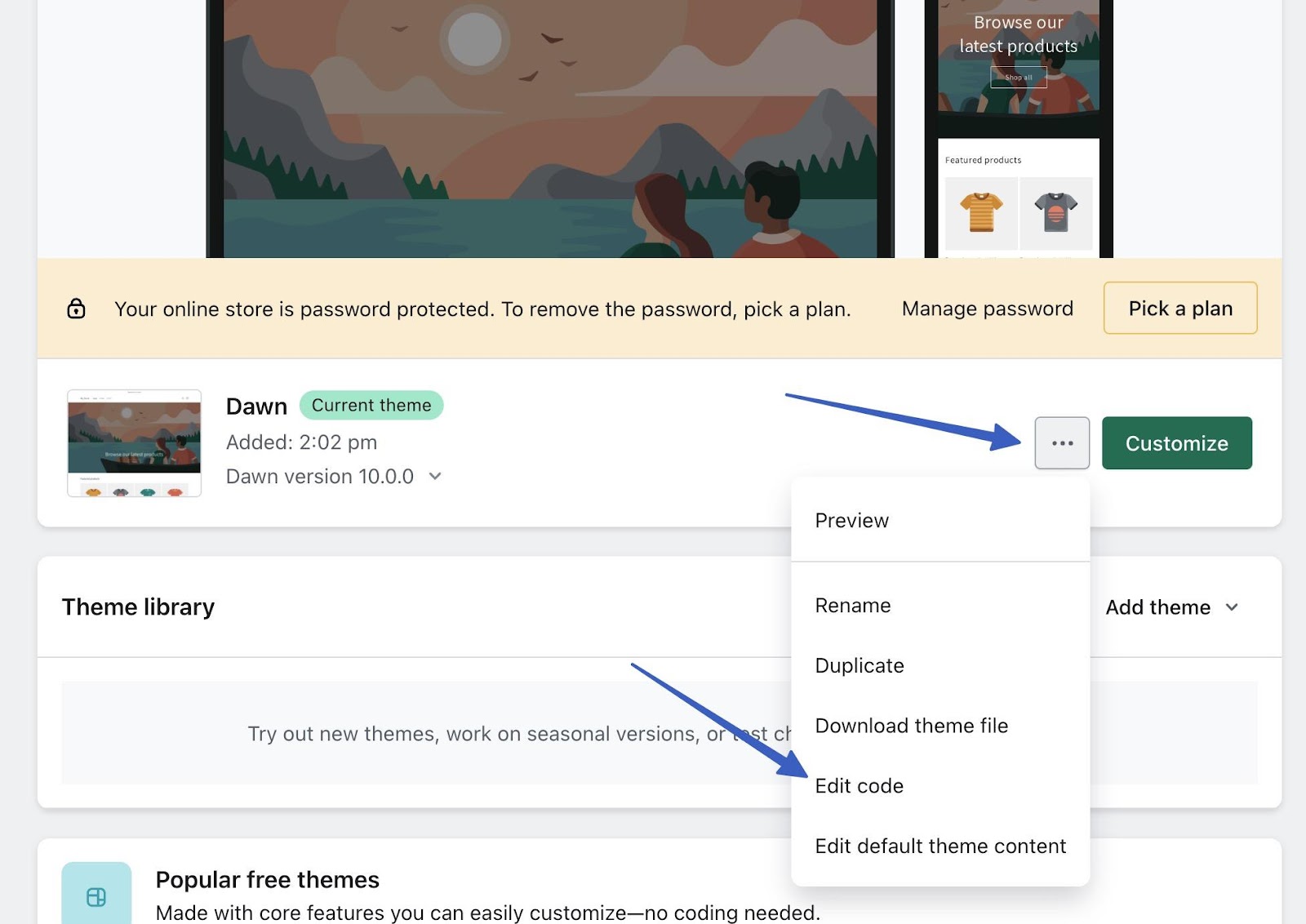
To find the Liquid files for your Shopify store, go to Sales Channels > Online Store.
Click the Ellipsis (…) button, and choose Edit Code.
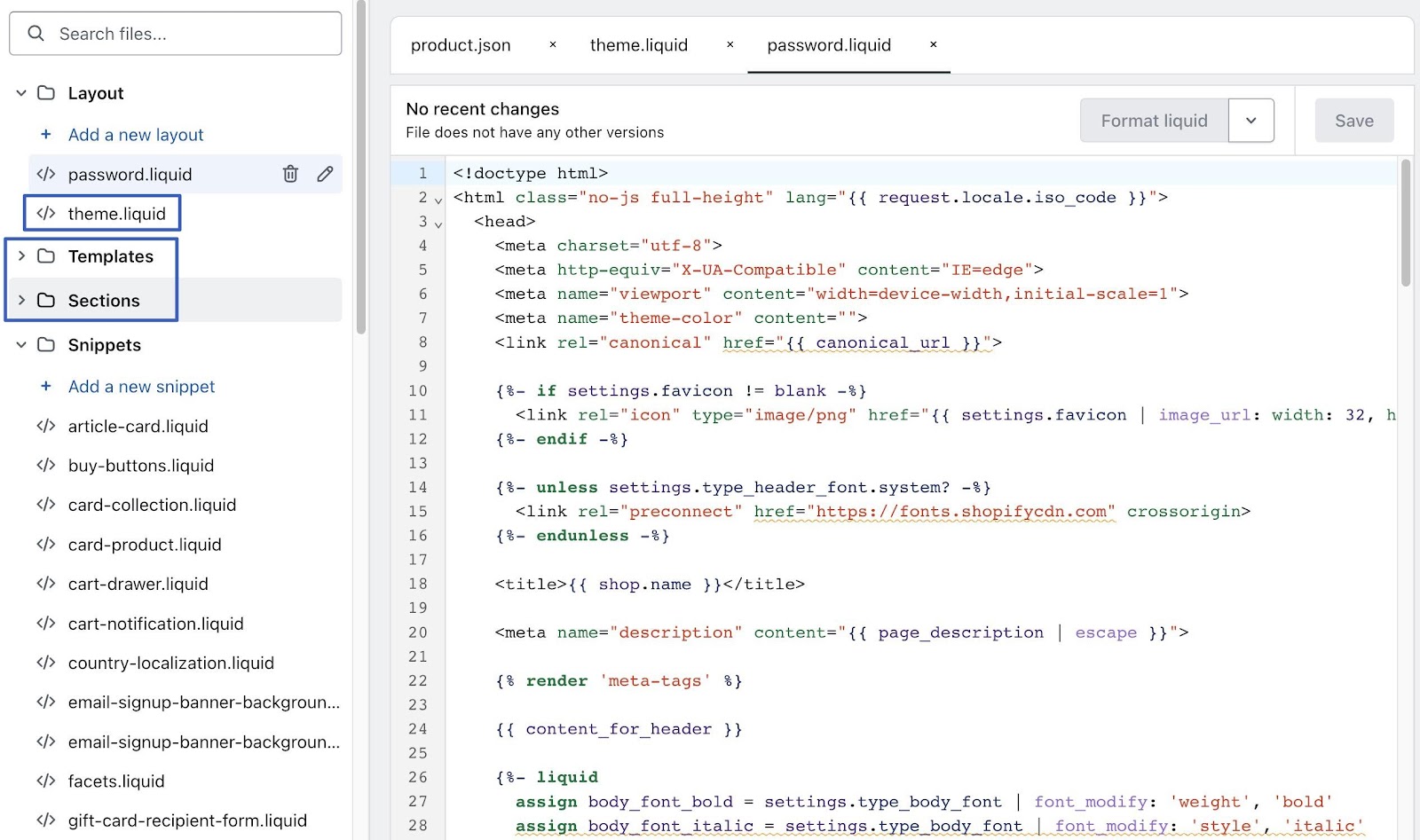
You can add the code directly to the theme.liquid file, but it’s generally recommended to make a separate Section or Template file, then reference that file in the main theme file. You can also go right to the product.liquid file, which controls the design of all product pages.
Tips on How to Make the Best Possible Related Products Section
The related products section in your Shopify store plays a crucial role in driving sales and enhancing the overall shopping experience for your customers. To ensure that your related products section is effective and optimized, consider implementing the following tips:
- Choose Relevant and Complementary Products: Select products that are genuinely relevant and complementary to the main item. Analyze customer preferences, purchase history, and browsing behavior to identify products that align with their interests. This will increase the chances of capturing their attention and encouraging additional purchases.
- Prioritize Visual Appeal: Visuals are powerful in attracting and engaging customers. Ensure that the related products section is visually appealing by using high-quality product images, consistent branding, and attractive layouts. Consider displaying multiple product images and showcasing different angles or variations to provide a comprehensive view of the related products.
- Utilize Smart (Dynamic) Product Recommendations: Take advantage of Shopify apps or plugins that offer smart product recommendation features. These tools leverage algorithms, artificial intelligence, and data analysis to provide personalized and dynamic recommendations based on customer behavior and preferences. By automating the process, you can save time and offer more accurate suggestions to your customers.
- Implement Clear and Intuitive Navigation: Make it easy for customers to navigate through the related products section. Use clear headings, intuitive filters, and sorting options to help customers find what they’re looking for quickly. Additionally, consider incorporating a “View More” or “Explore Similar Products” button to encourage further exploration.
- Test and Optimize: Continuously test and optimize your related products section to maximize its effectiveness. Experiment with different product combinations, layouts, and placements to find what works best for your audience. Monitor the performance of different related products, and make data-driven decisions to improve conversion rates and customer engagement.
- Monitor and Analyze Customer Behavior: Utilize analytics tools to track customer behavior within the related products section. Analyze metrics such as click-through rates, conversion rates, and average order value to gain insights into the performance of your related products. This data will help you refine your strategies and make informed decisions to further optimize the section.
- Regularly Update and Refresh: Keep your related products section fresh and engaging by regularly updating and refreshing the product offerings. Introduce new products, highlight seasonal items, or feature limited-time promotions to create a sense of urgency and encourage customers to explore further.
By implementing these tips, you can create a highly effective related products section that drives sales, enhances the shopping experience, and increases customer satisfaction. Remember to continuously monitor performance, analyze data, and adapt your strategies to ensure ongoing success.
Our Conclusion on How to Add Shopify Related Products
Adding related products to your Shopify store can greatly benefit your business by increasing sales and improving the overall shopping experience for your customers. By following the step-by-step tutorial we’ve provided, you now have the knowledge and tools to seamlessly add Shopify related products into your store.
Remember, the key is to choose complementary or similar items that enhance the value and appeal of your main product. Experiment with different app functionalities and themes to find the perfect combination that resonates with your target audience.
Now it’s your turn! Have you tried to show related products on your Shopify store? What strategies have worked best for you? We would love to hear your thoughts and experiences. Leave a comment below and share your insights with our community.


Comments 0 Responses