

Quick verdict:
At a glance, CamelCamelCamel might seem like a tool specifically designed for consumers, but I think it’s an incredible resource for business owners too.
As a dedicated website (and browser plugin) that allows you to track the prices of products on Amazon, CamelCamelCamel can help you:
- Save money when sourcing products from Amazon merchants.
- Stay one step of competitors who try to steal customers by dropping prices.
- Monitor seasonal price changes, and adapt your pricing strategy accordingly.
The best part? CamelCamelCamel is completely free, and it’s surprisingly easy to use. Here I’m going to guide you through the process of setting up your account, and using the features available.
Table of contents
What Is CamelCamelCamel?
CamelCamelCamel is a website designed to help people monitor the prices of products sold on Amazon. It’s available around the world, in countries like the US, UK, Australia, Canada, Spain, France, Italy, and Germany, and it’s entirely free to use.
The website uses a custom API to track the movement of prices on products sold through Amazon, allowing you to request instant alerts when a price reaches a certain point.
Plus, it gives you access to a host of historical charts, so you can see the price history of Amazon products, and examine fluctuations in costs over time.
Customers use the site (and its plugin, the Camelizer) to receive instant notifications when a product they want goes on sale.
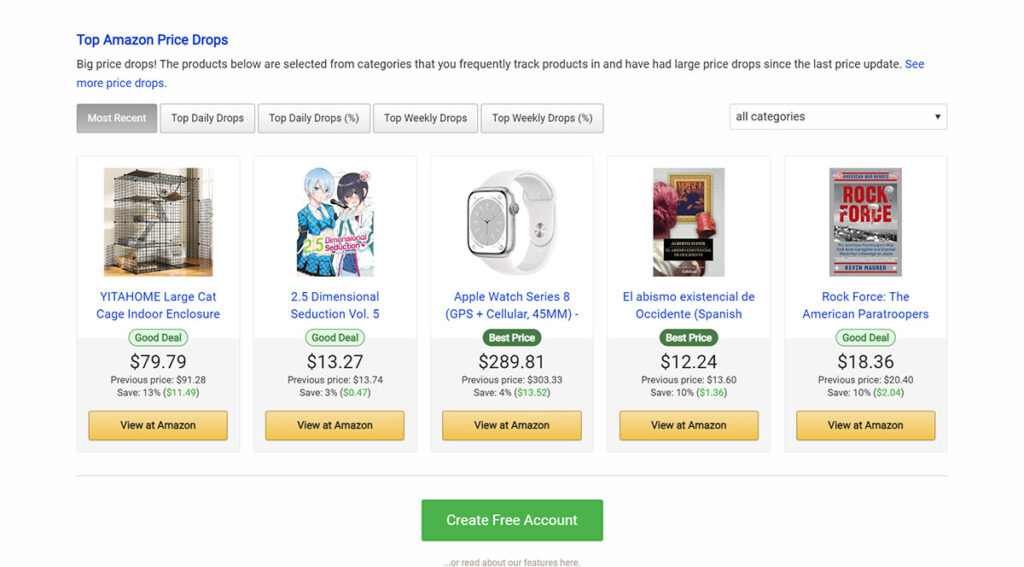
There’s also a great section on the website where you can see popular products, and top discounts within a specific period.
Ecommerce vendors, and retailers, on the other hand, use CamelCamelCamel for more strategic purposes.
You can use the platform to determine the best time to stock up on products from wholesalers, track the pricing behaviors of competitors, and boost your chances of sales.
Pros and Cons of Using CamelCamelCamel
Pros 👍
- User-friendly interface and plugin
- Completely free with no paid plans
- Convenient instant alerts
- No downloads required
- Can help you stay competitive
Cons 👎
- Exclusively tracks Amazon prices
- No integrations for ecommerce platforms
How Much Does CamelCamelCamel Cost?
So, how much can you expect to spend on this handy tool? Nothing at all. CamelCamelCamel is absolutely free by default.
The company earns commissions from Amazon as an affiliate, so it doesn’t charge its users (consumers or businesses) anything.
You don’t even need to create an account and enter your email address to use basic features like the product search function.
However, I would recommend signing up so you can take advantage of the option for instant email notifications, and the Wishlist importer.
The Key Features of CamelCamelCamel
CamelCamelCamel is a pretty straightforward tool with only a handful of features, but they’re all useful in their own way. At it’s heart, the solution is a price tracker, so most of the features focus on keeping you informed of the best deals.
The core features include:
Price Drop and Availability Alerts
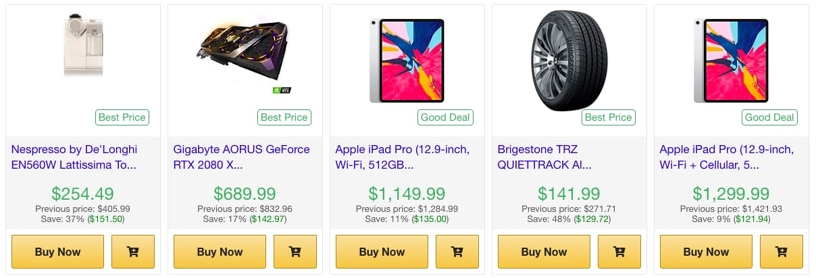
Price drops and availability alerts are the main CamelCamelCamel. Using an API connection to Amazon, the company regularly updates its site with fresh information on product prices from Amazon, and third-party merchants.
To receive alerts on a price drop, all you need to do is sign up with an email address, and identify a “target price” to watch for.
For instance, if you want to check no other company is selling your product for less than $50, you might set a target price of $49.99.
When a price drops to that level, you’ll get an alert straight to your email, with a link to buy the product, and an insight into how good of a deal you’re getting.
Price History Charts
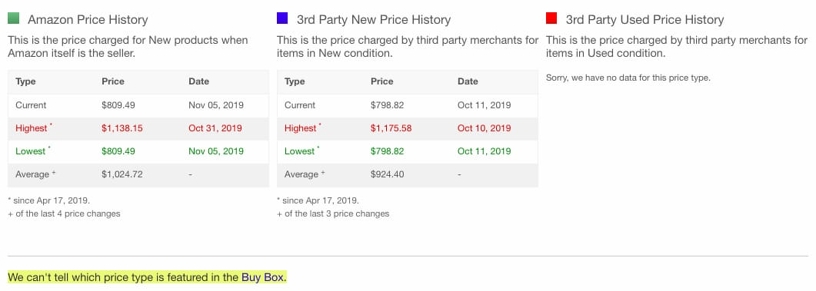
The price history charts on CamelCamelCamel are ideal for more in-depth research. If you search for an Amazon product page URL on the website, or use the site’s plugin, you can see charts of the price changes that have happened for that product over a specific period.
You can track Amazon prices, as well as third-party new and used prices (for marketplace products).
You’ll also be able to see prices segmented into “high”, “low” and “average” categories, which is great for planning your own pricing strategies.
Plus, you can adjust your insights based on various dates, checking the last month, the last year, or even how prices have changed for a product for the entire time it’s been available on Amazon.
The Camelizer App/Plugin
If you find it annoying to have to visit a website every time you want to check a price, or wait for a message to appear in your email inbox, the Camelizer plugin is a great alternative.
It can be added to Safari, Firefox, and Google Chrome Browsers, and gives you an instant insight into price history charts from the moment you click on it.
All you need to do is visit Amazon, search for a product, click on the CamelCamelCamel extension icon, and it’ll load up all the data you need.
There are multiple tabs to browse through, from the “price tracker” tab, to tabs for related products close to the one you’re following.
Wishlist Import
Finally, if you have an Amazon wish list full of products you want to monitor, you can import that directly into the CamelCamelCamel site.
This will allow you to automatically track important information about the products you’re selling, as well as any items you want to buy.

Once you import any public list from Amazon into CamelCamelCamel, the site will read all the information from the URL, and import products into your tracking account, removing anything you’ve already purchased.
Your CamelCamelCamel account will even automatically update every time you make a change to your wish list on Amazon.
How to Use CamelCamelCamel: Getting Started
As I mentioned above, one of the great things about CamelCamelCamel is how easy it is to use. If you’re just using the website, there’s really not a lot of work involved in getting started.
In fact, you don’t even have to create an account.
You can just choose the country you’re in, and start searching for Amazon products and pricing information with the search bar.

You’ll also be able to get instant insights into the most popular products customers are buying, and their prices (with the Popular Products tab). Or you can check out the products that have had the biggest price drops recently, with the “Top Price Drops” tab.
You can even use the website on any device, such as a tablet or smartphone. Although I did find it was a lot easier to navigate on a larger screen.
Creating an Account with CamelCamelCamel
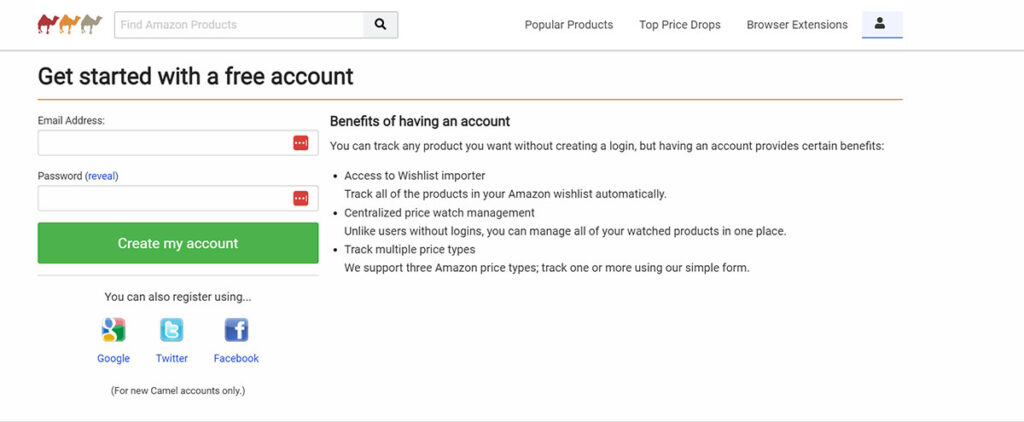
While you don’t have to have an account to use the basic features of CamelCamelCamel, there are some benefits to signing up. You’ll be able to access price drop and availability alerts instantly this way, use the Amazon Wishlist import feature, and track more types of prices.
Fortunately, you don’t have to pay anything to sign up. It also takes very little time to create an account, you can just enter your email address, or register with Google, Facebook, or Twitter.
After you’re signed up, you’ll see a list of options for tracking popular products, top price drops, installing the browser extension, or importing your wish list.
You can head into your account dashboard for access to more features, and to start tracking products. You can also close your account directly from here if you decide you don’t want to use it anymore.
Installing the Browser Extension
Similar to creating an account with CamelCamelCamel, downloading the plugin for your browser is optional, but it can save you a little time.
The “Camelizer” app is available for most popular web browsers, and you can download it instantly from this page.
Here’s the basic setup process for each browser type:
Google Chrome
- Open Google Chrome and visit the Chrome Web Store.
- Search for “Camelizer” and click “Add to Chrome”
- Select “Add Extension”
- Click the “Extensions” button on your address bar
- Click the “pin” button to pin the app to your browser.
Apple Safari
- Open Safari then click on “Safari > Safari Extensions” in the menu bar
- Search for “Camelizer” and click “Get”
- Click “Install” (you may need to sign in)
- After the install is finished click “Open”
- Follow the instructions provided
- Go into your Safari “Preferences” page
- Click “Extensions”
- Select the checkbox next to Camelizer.
Firefox Mozilla
- Open Mozilla Firefox
- Open the add-ons store from the menu bar
- Search for the Camelizer extension
- Click “Add to Firefox”
- Click “Add”
Opera
- Open the Opera browser
- Go to “Add-Ons” and search for “Camelizer”
- Click “Add to Opera”
Microsoft Edge
- Open Microsoft Edge
- Click “Edge Add-Ons” and search for Camelizer
- Click “Get”
- Click “Add Extension”.
Using the CamelCamelCamel Core Features
For the most part, using CamelCamelCamel is a straightforward and painless experience. If you just want to check an Amazon product’s price, and pricing history, all you need to do is head to Amazon, look for the product you want, and copy the URL for the page.

You can then head back to the CamelCamelCamel website, and enter the URL into the search bar to see the current price.
You can scroll down through the page to see how the price has changed over time. There’s even a handy graph.
Plus, you can change your view to look at different time periods, Amazon prices, and third-party new and used prices:

Alternatively, if you have the Camelizer extension installed, there’s no copy and pasting required. You can just click on the Camelizer app button on your browser when you visit the page for the product you want to review.
Both in the app, and on the website, you can also choose to create a “price watch” for the item you’re interested in, but you do need to be logged in.
Setting Up a Price Watch
To watch the changing price of a product, and be instantly notified when ever a price falls to a specific level (based on your settings), you’ll need to set up a price watch.
You can do this either by searching through some of the top trending products on CamelCamelCamel, or by searching for the product you want to monitor with an Amazon URL.
Once you arrive on the product page within the CamelCamelCamel website, scroll down to see the “Create Amazon Price Watches” section:
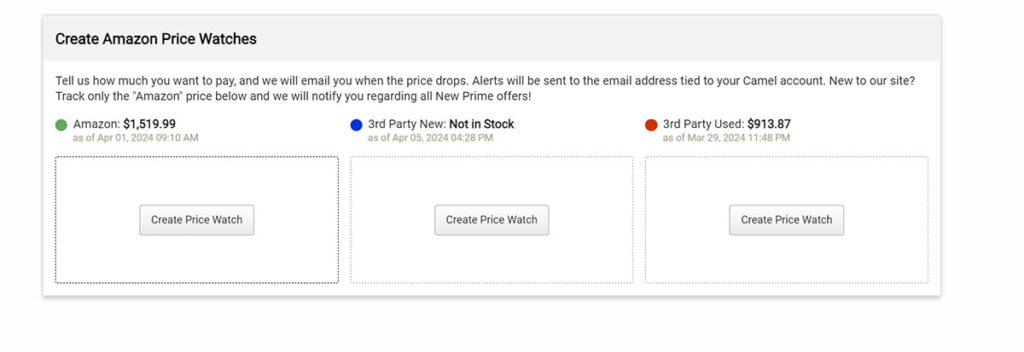
Choose whether you want to track the price for Amazon, or Third-part Used, or New merchants (you can also monitor all three).
Click the button to “Create Price Watch”, and you’ll be able to enter your target price, or choose from a range of pre-set options.
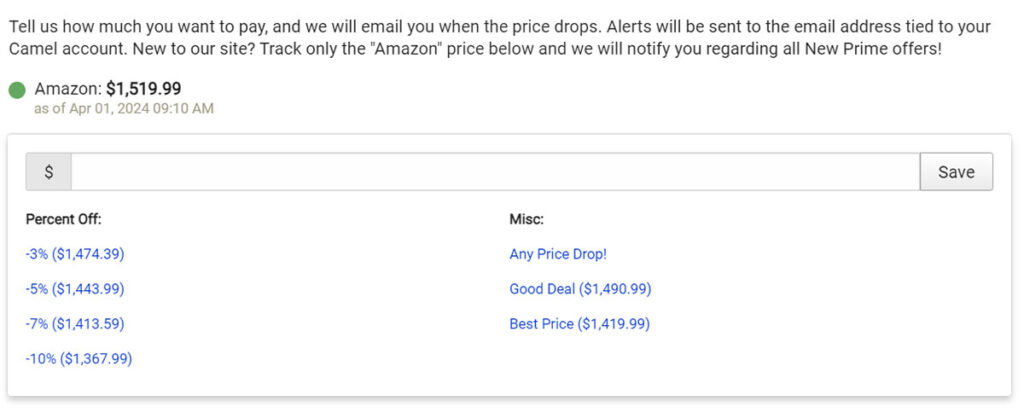
Once you’ve entered your target price, click “save” and the price watch will be added to your account. You can then go back to your account page, and click on your “Price Watches” to see your list.
From here, you can also edit the price benchmark for whatever you’re watching.
Plus you can sort through your “watch list”, with a range of filters, such as “lowest price” or “newest item” first.
That’s ideal if you’re monitoring a lot of different products. You can even create your own RSS feed for your alerts, to add to a newsreader.
Adding a Wishlist to CamelCamelCamel
If you want to import a wish list to CamelCamelCamel, log into your account, and visit your account home.
From there, click on the tab for “Wishlists”. You should be taken to a page with a button that says “Add Wishlist”, click on that:
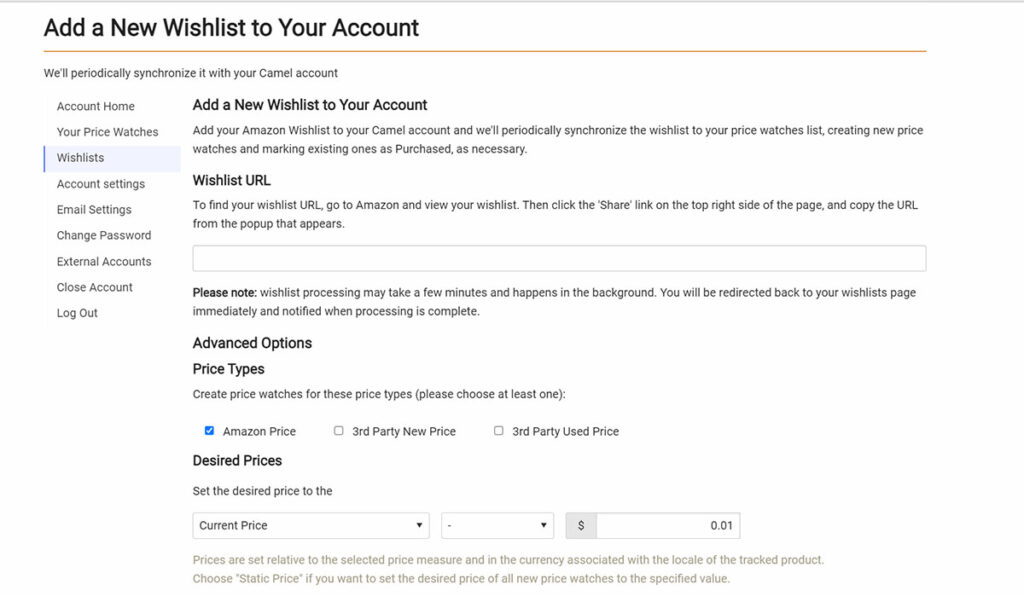
The site will take you to a page where you need to enter an URL for your wish list. You can use the URL of any public list on Amazon.
Next, choose the types of prices you want to watch (you can pick all three), and set the desired price for each item.
Once you’re done, simply click “Add Wishlist”.
Using CamelCamelCamel: Finishing Thoughts
The CamelCamelCamel website and plugin are both excellent tools for ecommerce store owners, in my opinion.
They’re free to use, and straightforward enough that you’re unlikely to have any issues when you’re tracking prices for the products you want to sell.
However, you shouldn’t expect access to any particularly advanced features either. The solution only tracks product prices from Amazon, and gives you an insight into their pricing history.
Still, CamelCamelCamel can help you to both save money, and make the right decisions about how to price your own products.



Comments 0 Responses